A remote job does not begin only when the first meeting starts. It begins when your workspace, equipment, accounts and routines are ready enough for you to do the work reliably. A practical workstation check can prevent avoidable stress on the first day.
This guide is for job seekers who have accepted or are preparing for remote work. It focuses on the physical and practical setup: desk, screen, access, communication, backup plans and boundaries. It is not medical advice and does not replace your employer’s health and safety process.
Confirm what the employer will provide
Before buying equipment, ask what the employer provides, what you are allowed to use and which costs are covered. Some employers issue a laptop, headset and security tools. Others expect you to use your own equipment temporarily. Do not assume reimbursement without written confirmation.
Clarify delivery timing and setup support. If a laptop arrives after your start date or login credentials are delayed, your first day plan needs adjustment. Keep contact details for the person or team handling equipment and onboarding.
If you accepted a remote role after comparing opportunities, revisit the practical conditions. The job-offer comparison guide helps weigh pay, responsibilities and working conditions. Remote equipment and internet costs are part of the real conditions, not a side detail.
Record serial numbers or asset information only through the employer’s approved process. Do not post photos of company equipment, screens or internal labels online.
Set up the desk for repeatable work
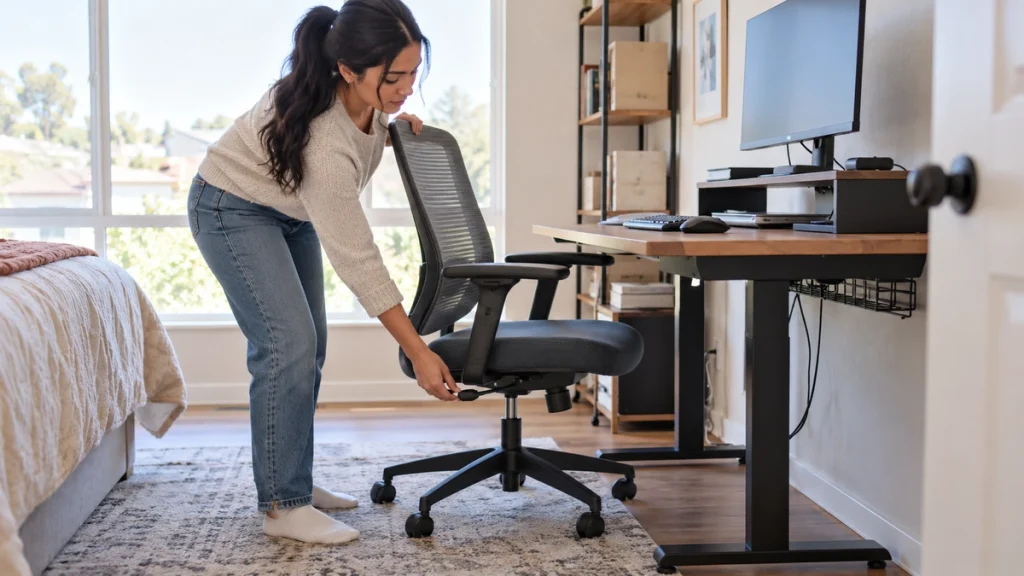
Choose a surface that can hold the equipment securely. A temporary arrangement may work for one interview but become uncomfortable and inefficient after several full workdays. Stability matters for typing, calls and concentration.
Place frequently used items within easy reach. Keep the keyboard, mouse, notebook and phone where you do not need awkward repeated stretching. Small adjustments can reduce distraction even when you do not have a perfect office.
The UK Health and Safety Executive provides a display screen equipment workstation checklist that covers areas such as keyboard, mouse, display, software, furniture and working environment. Use it as a structured prompt, then follow your employer’s local process.
Do not copy someone else’s setup without considering your space and tasks. A designer using two large screens has different needs from a support worker handling calls and a ticket system.
Check screen, keyboard and mouse comfort
Position the screen so you can read it without leaning forward for ordinary tasks. If you use a laptop for long periods, ask whether a separate keyboard, mouse or monitor is available or permitted. A small laptop-only setup may be manageable briefly but harder for sustained work.
Test text size and application layout before day one. If you need to zoom constantly, change display settings or request support rather than struggling silently. Clear visibility affects accuracy as well as comfort.
Use the input devices you will actually use for work. A mouse, trackpad or keyboard that feels fine for browsing may become tiring during long data-entry or writing tasks. Try a realistic task such as writing notes, switching systems and updating a form.
Keep cables arranged safely. Avoid creating a trip hazard, especially if the workspace is shared with family members. If power points are limited, ask about approved extension options rather than improvising with unsafe equipment.
Test internet and communication tools
Run a practical test from the exact location where you will work. Join a call, open required tools, send a message and upload or download a small file if that is part of the job. A general speed number is less useful than knowing whether your actual tasks work.
Check how the employer expects you to communicate: chat, email, ticket system, phone, video calls or project boards. Learn which channel is urgent and which is for routine updates. Remote work can become noisy if every message feels equally important.
The remote job-search guide explains how to verify remote opportunities before applying. After accepting, verification turns into readiness: official accounts, legitimate tools and clear instructions matter more than random apps.
Prepare a backup communication route for outages. This might be a phone number, mobile data plan or agreed message channel. Confirm the route before a problem occurs.
Prepare access without weakening security
Set up passwords, multi-factor authentication and required software through official instructions only. Be cautious of messages that ask you to install tools or share codes outside the employer’s normal process.
Keep personal and work accounts separate where possible. Do not save company files in personal cloud folders unless explicitly allowed. If you must use your own device, ask about security requirements, updates and what happens when employment ends.
Store recovery information securely. Losing access during the first week can block training and make you dependent on support queues. Know how to contact IT and what information they will ask for.
Do not bypass security because setup feels inconvenient. A remote worker often has access to customer, business or staff information. Protecting that access is part of doing the job professionally.
Plan your first-day environment
Choose a start-of-day routine. Open the necessary tools, check calendar times, test audio and review the day’s induction or meeting schedule. Begin earlier than usual on the first day so you have time to solve simple problems.
Control visible and audible distractions as much as possible. Tell household members when you will be on calls. Silence non-work notifications. Keep water, charger and notebook nearby so you do not repeatedly leave during onboarding.
If your workspace is shared, create a signal for calls or focused time. This does not need to be elaborate. A closed door, note or agreed schedule can reduce interruptions.
Avoid overloading the first morning with personal errands. Remote work can make boundaries look flexible, but the employer still expects availability during agreed hours.
Make a backup plan for power and equipment
Identify what you will do if the internet drops, the power fails or the company laptop does not start. Your backup plan should be simple and approved. It might be contacting your manager by phone, moving to a pre-identified reliable location or waiting for IT instructions.
Test the backup before relying on it. Mobile data, a borrowed device or another location may have limits you only discover under pressure. If the backup cannot support the work, at least it may support communication.
Do not use an unapproved personal device for confidential work just because the main device fails. Ask first. A short delay is usually better than creating a security incident.
Keep essential contact details available offline. If all information is inside the inaccessible laptop, you may not be able to report the problem efficiently.
Set boundaries for sustainable remote work
Remote work can blur home and job boundaries. Decide where work materials will be kept, how you will end the day and when you are expected to respond. Ask your manager about availability norms rather than guessing.
If the role began with a trial or project, make sure the ongoing expectations are clear. The paid remote work trial guide explains scope, deliverables and review criteria. Similar clarity helps once the role becomes regular employment.
Take breaks according to local law, employer policy and your health needs. Do not treat remote work as proof that you must be constantly visible. Reliable output and communication are better than performative online presence.
Review your setup after the first week. The first day reveals obvious problems; the first week reveals repeated friction. Adjust what you can and raise what requires employer support.
FAQ
Do I need an expensive home office before starting remote work? Not always. You need a setup that supports the actual duties safely and reliably. Ask what the employer provides before spending money.
Should I use my personal laptop for company work? Only if the employer allows it and security requirements are clear. Keep work and personal information separated as far as possible.
What if my internet is unreliable? Tell the employer early, test realistic backup options and agree how to communicate during outages. Do not wait for the first major meeting to discover the problem.
Finish with a written checklist
Create a one-page checklist for equipment, access, communication, backup and workspace. Tick items after testing them, not after assuming they will work. Share issues through the proper channel before they affect customers or colleagues.
A remote workstation does not need to look impressive. It needs to let you do the job clearly, securely and consistently. That is the practical standard to aim for before the first day arrives.
Run a half-day simulation if possible. Use the chair, screen, internet, headset and main applications for a realistic block of time. Short tests catch obvious failures, but longer tests reveal small problems such as glare, unstable audio, uncomfortable typing height or a power cable that does not reach safely.
If you share the home, agree on practical boundaries before the first day. Decide where calls will happen, when noise needs to be reduced and what to do if another person needs the same space. Clear domestic arrangements support professional reliability; they are not separate from the job.
Document issues with facts. Instead of saying “my setup is bad,” say “the company laptop arrived without the charger” or “the required app opens but the authentication code is not reaching my phone.” Specific reports help managers and support teams solve problems faster.
Think about privacy as well as comfort. If calls include customer names, internal figures or staff issues, choose a place where others cannot easily hear confidential details. Use a headset where appropriate and avoid working in public spaces unless the employer allows it and the data risk is understood.
Check lighting for video calls without turning the workspace into a studio. The goal is for people to see your face clearly enough for normal conversation. Strong backlight, flickering bulbs or a busy background can be distracting, but you do not need expensive equipment to appear professional.
Create a shutdown routine. Close work applications, secure documents, clear the desk of confidential notes and mark any unfinished tasks for tomorrow. Remote workers can accidentally leave work open all evening because there is no commute to signal the day is over. A clear ending protects attention and reduces mistakes.
If your employer has a formal home-working or workstation assessment, complete it honestly. Do not mark everything fine because you fear looking difficult. The point of an assessment is to identify practical risks and support needs before they become bigger problems.
Before the final decision, ask whether the job would move you toward a better next step even if it is not perfect. Some roles are useful because they build evidence, references or sector knowledge. Others only repeat experience you already have without improving conditions. A careful reading should consider both the immediate vacancy and the career direction it supports.
